
THE VIRTUAL OFFICE NEW
An office with people in it, not a chat window.
AI staff with real job roles: you give them work, talk to them, file what they make, and design the office around them. Everything they do waits for your approval before it leaves. The office is in owner preview now and opening to the public soon; this page is what you will find when it opens.
The office is not open to the public yet. Join the waitlist
I · The office itself
A place, with desks and doors, that you move through.
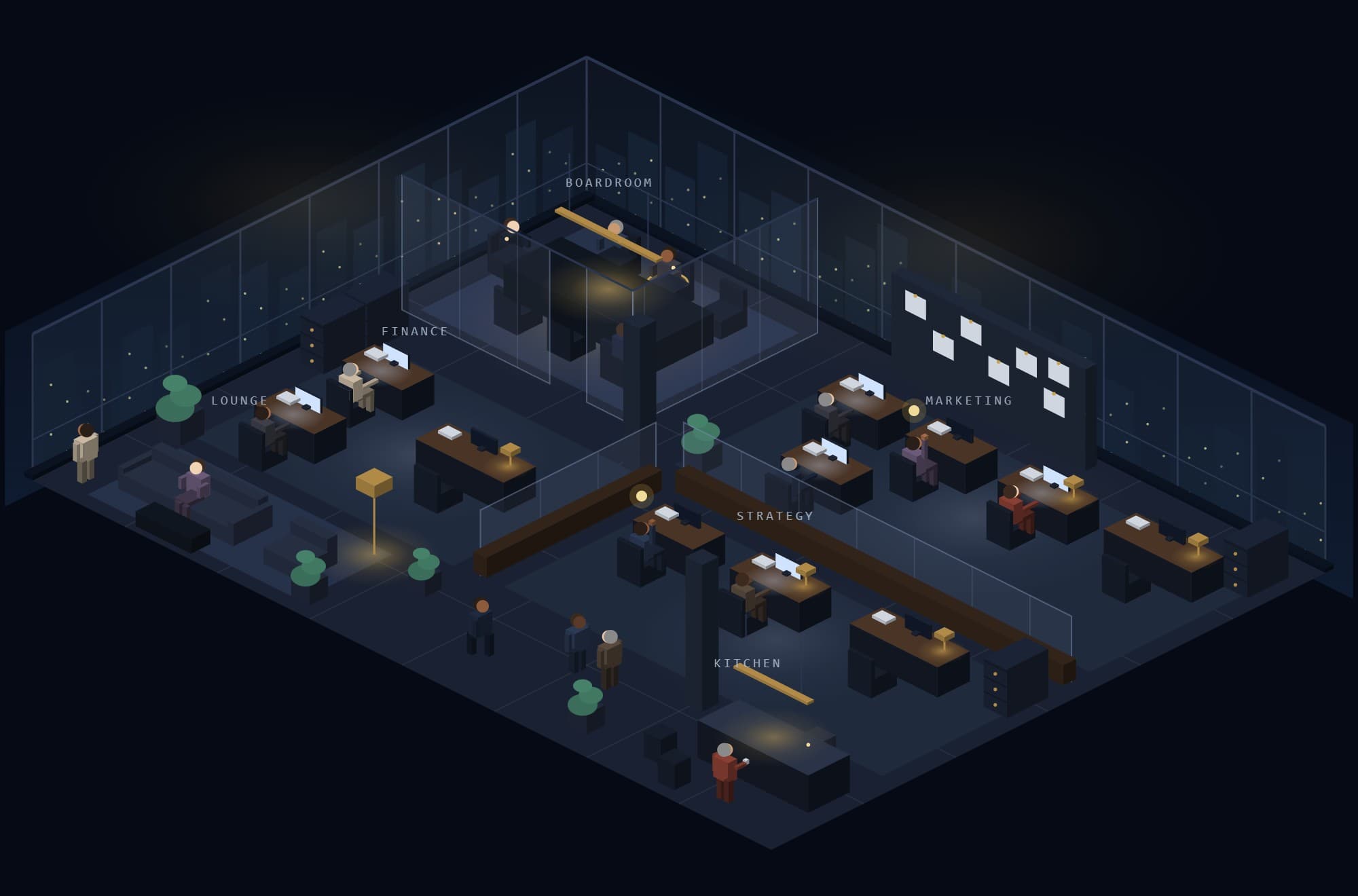
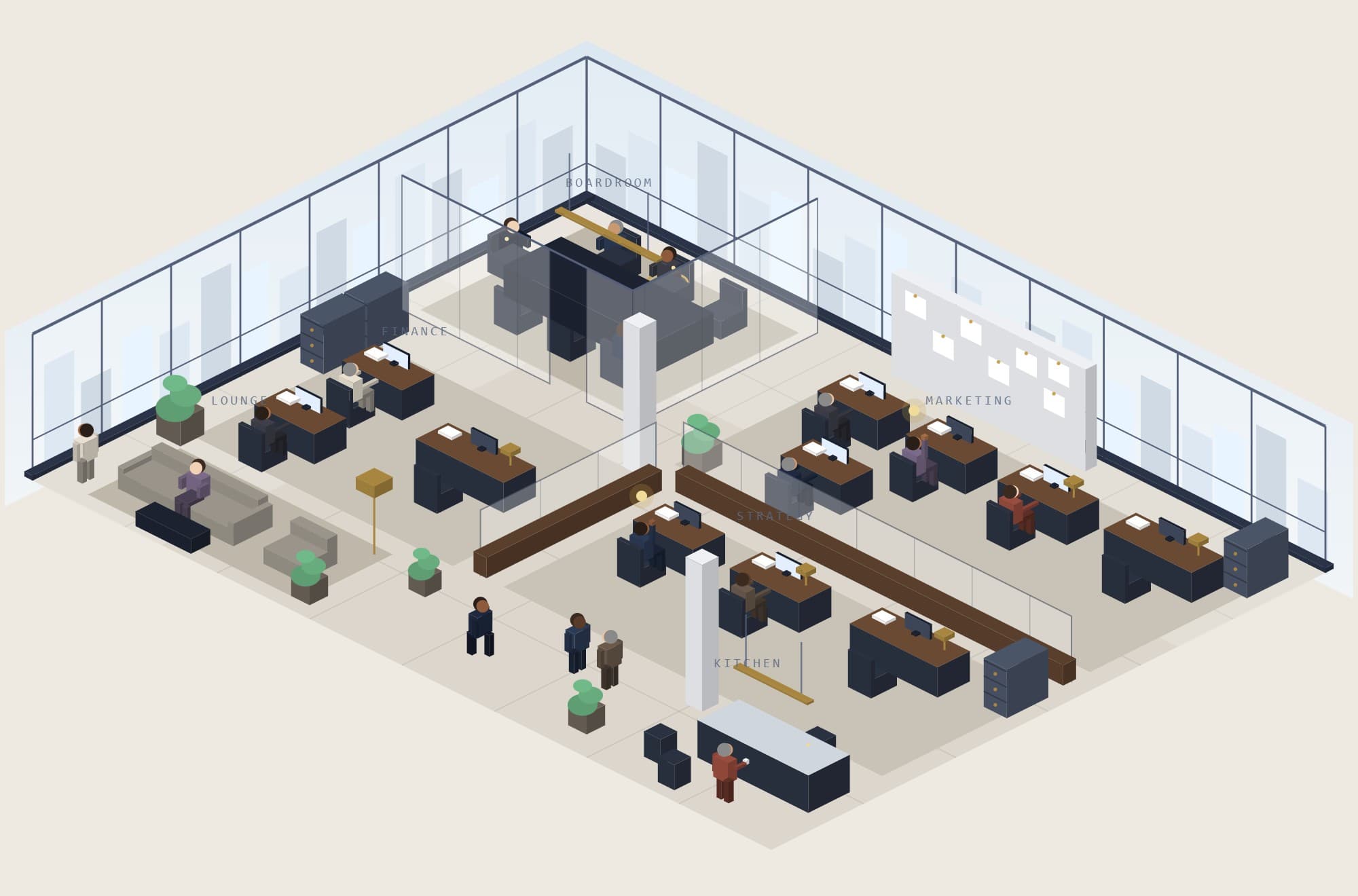
Not a dashboard with a picture on it. The office is where the work happens: you go to a person to talk to them, to a cabinet to open it, to the Boardroom to meet.
A floor you can walk around
An isometric office with glass walls, desks, a kitchen, a lounge and a Boardroom. You appear as the CEO. Pan, zoom and rotate between four views, by day or by night.
Walk up to things to use them
Go to a desk to talk to the person at it, to a filing cabinet to open it, or into the Boardroom to call a meeting. Or pick someone from the Go to list and have them follow you.
Works on a phone
A touch pad to move, large touch targets, controls that stay out of each other’s way, and a plain list view of the whole office when the drawing cannot run.
II · AI staff with real roles
People with job titles, not prompts.
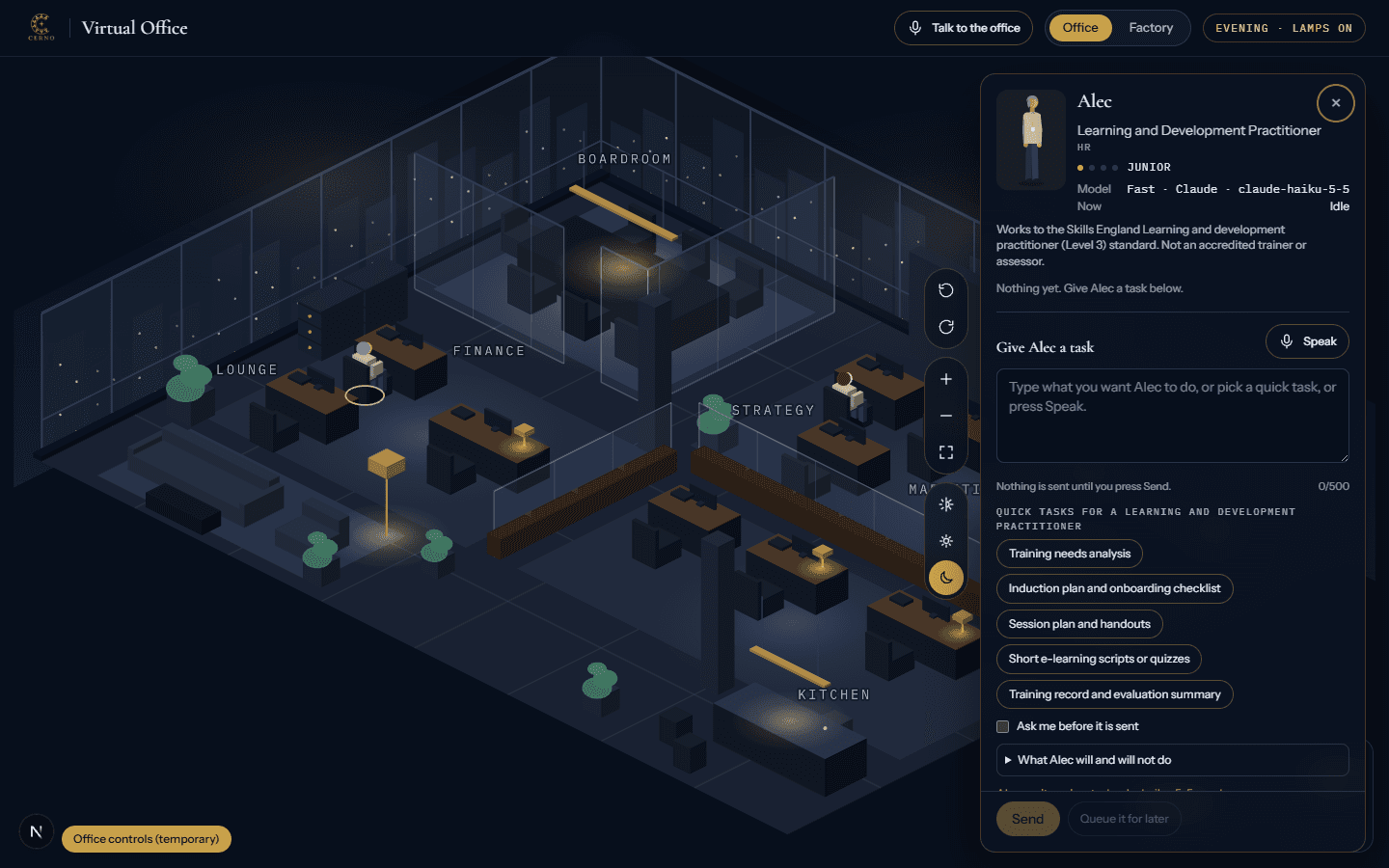
Each person has a role, a level and a card that says plainly what they will and will not do. You give the work; they do it at their desk; you approve the result.
64 real roles
Ten departments, from Marketing to Legal and Compliance. Each role has a plain-English card saying what it can and cannot do. Roles work to a published UK standard; no one claims a qualification or gives professional advice.
Four levels, four models
Junior, Senior, Head of Department and Director. Each level runs on an AI model chosen for its cost and quality, and the staff card shows which.
Give a task your way
Type it, pick a quick task for that role, say it, or name the person. Every task shows who asked for it and what it cost. Nothing is sent until you press Send.
Your approval first
Anything that would be sent, published, paid for or signed waits for you. Finished work sits in the person’s tray until you approve it.
Meetings in the Boardroom
Call the heads of department together. They ride to the meeting floor, debate, and file a decision brief; then they go home.
They work while real work runs
A person sits at their desk and types only while an actual task is running. An idle office is an honest office.
III · Your budget and approvals
You can see the money, and nothing moves without you.
The Energy meter
This month’s real AI spend against your plan’s allowance, on the wall of the office, with the cost of every task next to it.
Limits that hold
Spending limits are enforced in the code, not just shown on a screen. Work that would go over stops.
Nothing leaves without you
Staff draft and propose. Sending, publishing, paying and signing all wait for a person to say yes.
IV · Talk to your team
Hold to talk. They answer out loud.
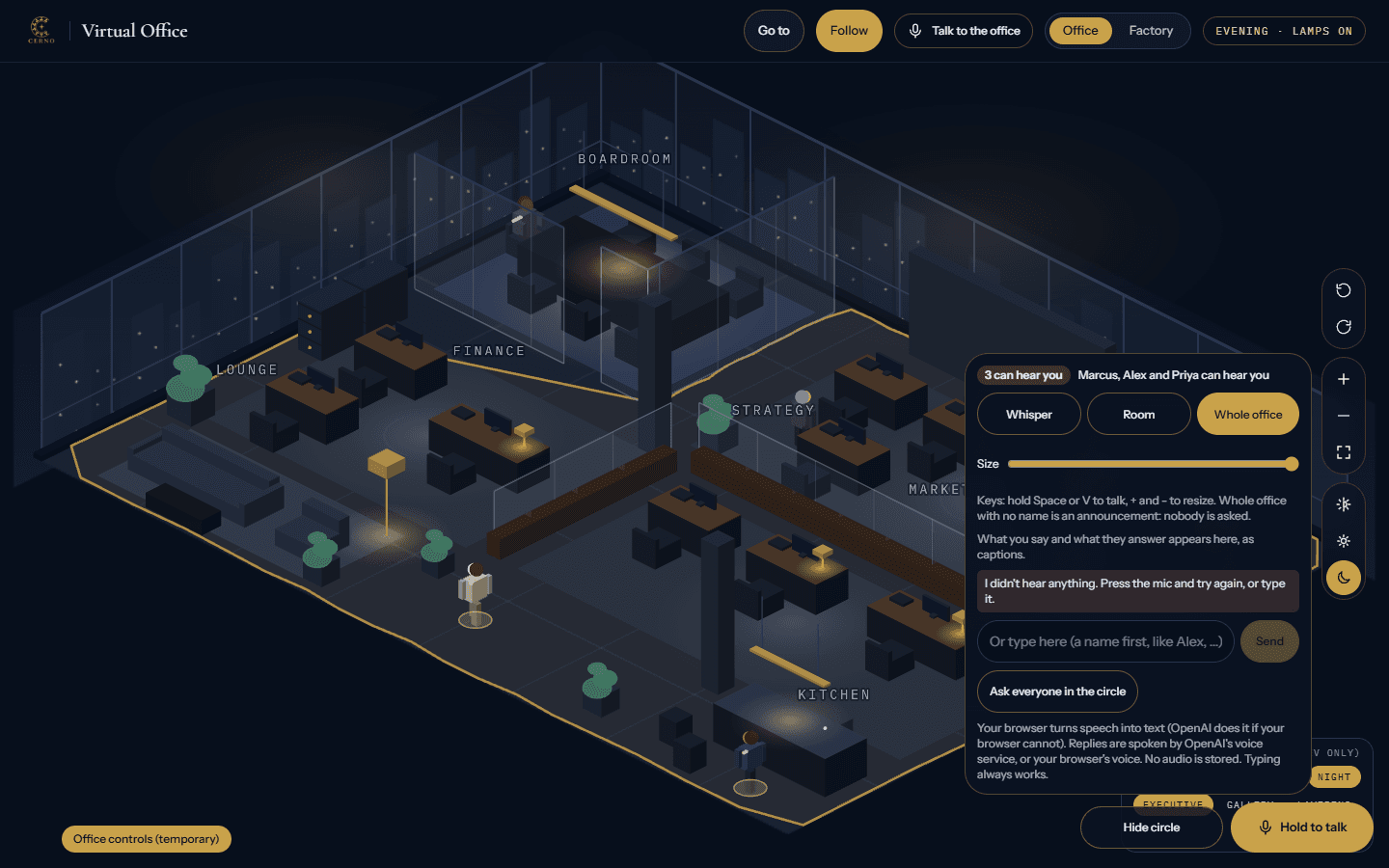
Speak to the office as you would walk up to someone. A circle on the floor shows exactly who can hear you.
Hold to talk
Hold Space or V, or the button on a phone. The person answers aloud in their own calm voice, with a caption and a Stop button.
A circle shows who can hear you
Slide it from the person next to you, to the room, to the whole office. Walls and a closed Boardroom block it, and volume fades with distance.
Name someone, or don’t
Say a name and only they answer. Say no name and the nearest person in the circle does. Speaking to everyone is an announcement and costs nothing.
Ask everyone, with the cost first
Put a question to everyone in the circle and the office shows what it will cost and waits for your OK before anyone answers.
Turn it into a task
One button makes what you said a task for that person. Nothing runs until you press Send.
No audio is stored
Your speech is turned into text and dropped. If the voice service is down, the office falls back to your browser’s voice, then to plain text.
V · Files and the filing cabinet
Your documents in, their work out, all in one cabinet.
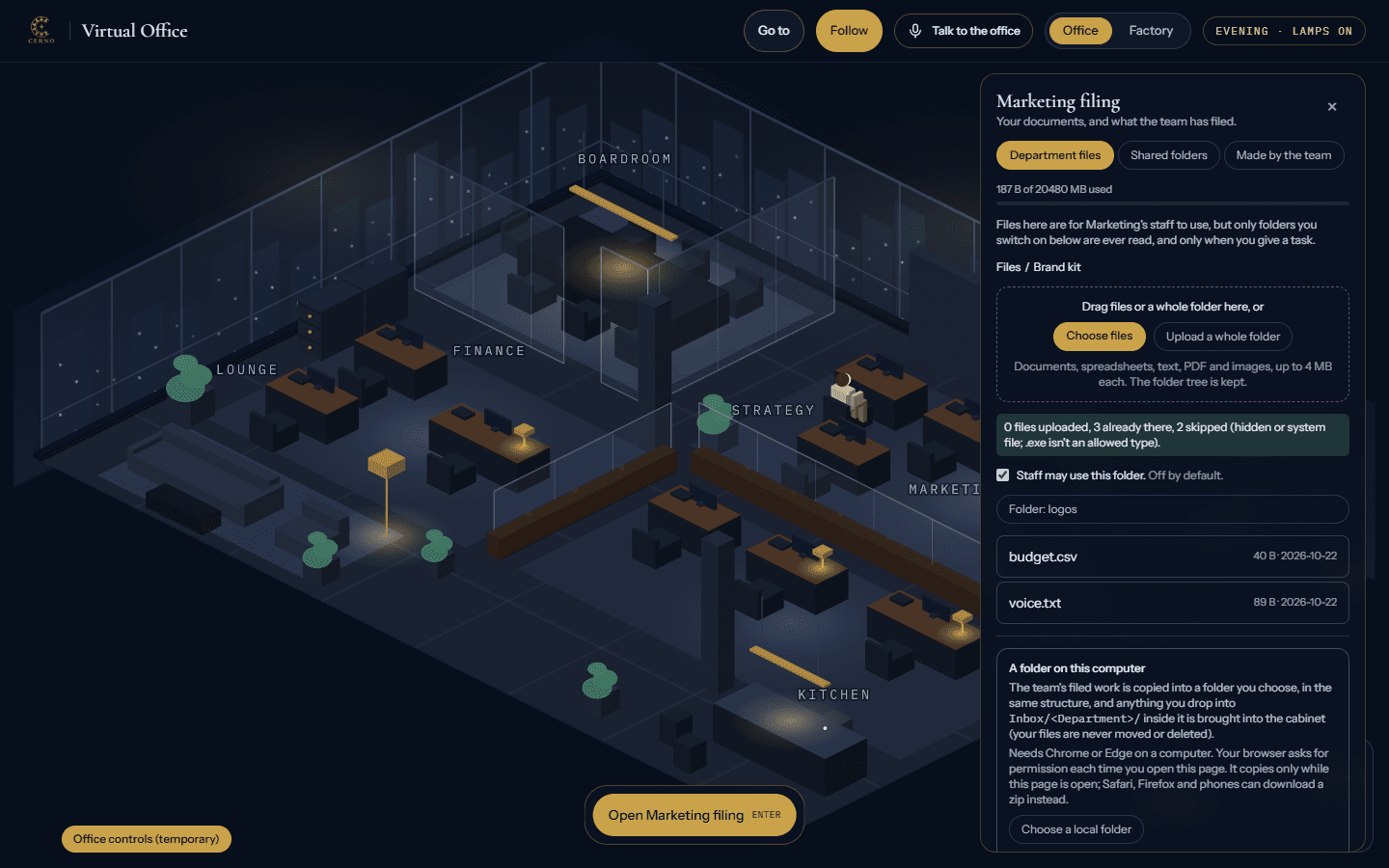
A real filing cabinet
Upload files or whole folders into department cabinets. The folder tree is kept, and the office tells you what it skipped and why.
Staff file their own work
Finished work is filed neatly into the right department folder, with an index, so you can find what the team made.
You choose what they may read
Staff use only the folders you switch on, and only when you give a task. Each task shows how many files it used.
Your own folders, connected
Connect a folder on this computer or Google Drive. Filed work is copied out, and anything you drop in the inbox comes into the cabinet. Your files are never moved or deleted.
VI · Design your office
Make it yours: rooms, floors, a lift, a second office, a factory.
Edit mode is yours as the owner. Everything you change is checked as you place it, and a refusal is explained in plain English.
Edit mode
Change floor, wall and frame colours and materials; lights, glass rails, panels and door styles. Add, move and remove plants, rugs, lamps and pendants from a curated catalogue.
Move anything
Desks (the person follows), chairs, cabinets, furniture, doors, glass walls and whole rooms. Turn desks and cabinets. Resize rooms and the Boardroom table.
Checked as you go
Every desk must stay reachable, a Boardroom must exist, doors must sit in gaps. A refusal is explained in plain English. Save, Undo, Reset or Cancel.
Rooms that snap together
Pre-made department rooms, a Boardroom, a kitchen, a lounge and a filing room, with a ghost preview and rotation before you place them.
Floors, basements and a lift
Add floors and basements, copy a floor, move the Boardroom between floors, and ride the lift with your staff. Voice and the hearing circle work per floor.
Several offices, and the Factory
Run more than one office, each with its own layout, and give staff a home office. Or switch to the Factory, where work flows along conveyors you lay out: belts, a merge, a splitter, an approval gate and junior, senior and head stations.
VII · The Boardroom
When something needs deciding, the board meets.
The board is the original Cerno product, and it is open today. Your heads of department join a board of advisors, including a Devil’s Advocate that runs on a different AI model for a genuinely different view. They debate, vote, and file an Executive Decision Brief.
Put a decision to the boardVIII · Coming
Built or being built, and not yet available.
Some of these are finished and switched off while we test them. None is available today, and we will not describe one as available until it is.
A project lead
Give it an idea; it plans in stages with approval gates, estimate ranges and a hard pound cap, proposes hires for you to approve, and reports as it goes.
Connected tools
Design and coding tools as staff you hand work to, with a safe import of what they produce into the filing cabinet.
A shared office
Invite people as members or viewers, share tasks and approvals with who-did-what recorded, see who is here, and keep private tasks private.
A three-dimensional view and avatars
Spin and tilt the office, walk a room at eye height, and pick an original character for yourself and your staff.
Voice between people
Talking to the other people in a shared office, not only to the staff.
Integrations
Email, calendar and files from Google and Microsoft; approvals in Teams, Google Chat and Slack; accounting tools.
IX · Security and privacy
What protects your data, and what we do not have yet.
Owner-only rules in the database, spend limits in the code, no audio stored, and a plain list of what a larger supplier would have that we do not. We would rather say what is missing than let you assume it.
Data and privacy for people using the office at work: a plain note on what happens to what you type is being written and will appear here. Until then, the Privacy Policy is how Cerno describes its handling of your data.
Join the waitlist
The Virtual Office is not open to the public yet. Leave your email and we will tell you when it opens.